
Getting Started

Adafruit Playground is a wonderful and safe place to share your interests with Adafruit's vibrant community of makers and doers. Have a cool project you are working on? Have a bit of code that you think others will find useful? Want to show off your electronics workbench? You have come to the right place.
The goal of Adafruit Playground is to make it as simple as possible to share your work. On the Adafruit Playground users can create Notes. A note is a single-page space where you can document your topic using Adafruit's easy-to-use editor. Notes are like Guides on the Adafruit Learning System but guides are high-fidelity content curated and maintained by Adafuit. Notes are whatever you want them to be. Have fun and be kind.
Click here to learn more about Adafruit Playground and how to get started.
-
Pinned by mrklingon
Meet MrKlingon - Joel Anderson
Joel, aka MrKlingon, is a lifelong SF enthusiast who has been playing with computers for about as long as he remembers. From a Think-a-Tron, to Digicomp, to science fair projects, he has always loved thinking of interesting computing projects.
Retired from work in network security for a Big Ten university at the beginning of the pandemic, he delighted in discovering all the great things Adafruit had to experiment with. Particularly interesting has been coming up with ways to squeeze all sorts of things out of the tiny Neo Trinkey.

-
Sword of Shannara on Microbit
I enjoy programming little projects on the Microbit and CircuitPlayground because I find it easy to work on them "on the go"! This project meant I was able to start working on a computer, then continue the initial Makecode work using the iOS Makecode app - saving work to Github when switching from PC to phone and back.
It came about because I recently was reading through the Shannara stories, and that lead me to come up with some Microbit programs for this simple "Sword of Shannara" game in python and Makecode.
This is a vastly (!) simplified version of the classic fantasy "The Sword of Shannara."
Screen above shows "you," representing the hero, Shea Ohmsford, who is searching for the Sword of Shannara. You move left/right through a scrolling landscape (100 cells wide) displayed on the 5x5 LED micro:bit screen.
Overhead are dots that represent the "Skull Bearers" (think Tolkien's Nazgul). If you delay when one is overhead, it will attack and you can lose one of your five lives. So either move past quickly, or hit A+B to unleash the Elfstones to eliminate the Skull Bearer. Faint dots along the bottom of the "screen" represent landscape and serve to show your movement left/right.
Somewhere in the middle of the 100-element landscape is the "Sword" represented by three lit pixels.

-
Science + Fiction = Fun!
UPDATE! I discovered the "drake.py" file in my github was NOT the program I describe here. I re-wrote the drake.py program and have replaced it in the archive.
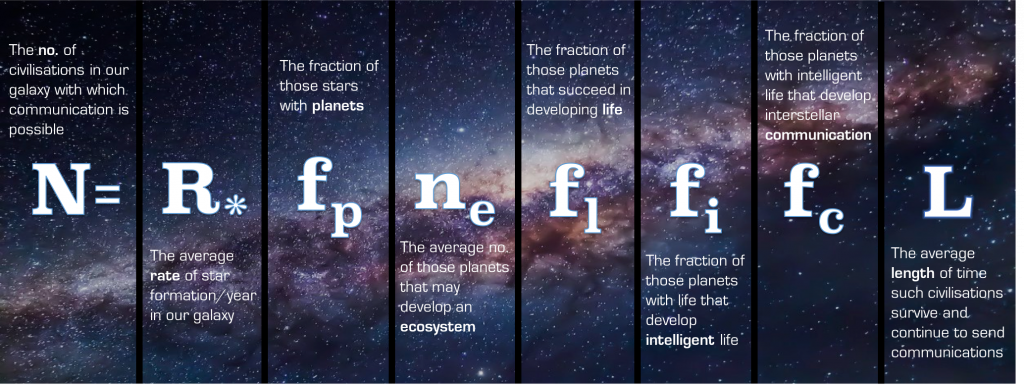
I enjoy the prospect of SETI, the Search for Extraterrestrial Intelligence. So it's only natural that I'd like to do something with the Drake equation "... the probabilistic argument used to estimate the number of active, communicative extraterrestrial civilizations in the Milky Way Galaxy." (https://en.wikipedia.org/wiki/Drake_equation)
Happily I found an example of coding this calculation (https://github.com/DeaconDesperado/pydrake) that I could adapt for this project. I've put the code in a repository "Drake"
Files
- drake.py - calculate the Drake equation- based on https://github.com/DeaconDesperado/pydrake
- sagan - Carl Sagan quotes
- wise.py - selects quotes to display
- ncount.py - used for blinking neopixels
- prt.py - allows prt() to print to REPL or HID keyboard input
Copy the files to your NeoTrinkey running (renaming drake.py to "code.py").
Touch pad#1 for the NeoTrinkey to calculate and print out the estimate - since the factors are coded as ranges, you will get different answers every time. After presenting the calculations, the program will also give a random quote from Carl Sagan - he describes the Drake equation in chapter 12 of his book "Cosmos." This is the "Science" part of my project
For fun, touching pad#2 will give a list of the names of the civilized planets - basically generating a random name for as many as the program calculated (plus Earth). Be aware that the number can be large and this will take a while. And yes, this is the "Fiction" part. :)
Change REPL=False to REPL=True to have output go as if typed via the keyboard.
Output looks like this:
How Many Alien Civilations?Number of stars in the Milky Way 1e+11Fraction of stars with planetary systems 0.131585Number of planets suitable for life 4Fraction of suitable planets that develop life 0.283515Fraction of life that becomes sentient and eventually intelligent 0.118758Fraction of intelligent life that advances to the point of communication 0.0128657Adjustment for incidence of self-destruction 1.10132e-06possible number of civilizations 25Who are we? We find that we live on an insignificant planet of a humdrum star lost in a galaxy tucked away in some forgotten corner of a universe in which there are far more galaxies than people. Carl Sagan1: Earth2: Gieuas3: Zoiah4: Syoei5: Mieud6: Zoafas7: Syan8: Theuei9: Kieei10: Zoghie11: Syaie12: Syafnk13: Zoyah14: Paeah15: Miiah16: Miuof17: Reaah18: Ahghd19: Aheei20: Giafn21: Reud22: Kiyah23: Kighn24: Theie25: Miud26: KieuofHope you have fun with this - may it give you something to ponder as you look at the night sky.
 The Drake Equation
 -
C3P0, Take the Wheel!
I really enjoyed getting my first PyBadge because it gave me a way to make my own arcade games using https://arcade.makecode.com. I did find that, I actually like making the games even more than playing them, so I thought about ways to have someone (or something) else play the game.
I'd heard about the idea of "mouse jigglers" - mechanical or software cheats to make it look like you were busy working on a computer when you weren't, and I knew CircuitPython supported HID (Human Interface Device) so I could send keystrokes. So why not "let C3P0 take the wheel"?
That led to my simple "mouse jiggler" for playing arcade games in a browser. (https://en.wikipedia.org/wiki/Mouse_jiggler) (Yes, this actually is a keyboard jiggler that randomly "fires" by sending spaces, and maneuvers by randomly sending cursor keys up, down, left and right.)
Designed to take over playing a simple arcade game in a browser, for example: https://makecode.com/_JfAKKf2EUcLv This game lets you steer the Millenium Falcon, and shoot asteroids and Star Destroyers.
Touch #1 on the NeoTrinkey to fire lasers, and touch #2 to toggle on/off a random "jiggler" that continuosly moves the ship around, randomly shooting.
Touch #1 and #2 together to end program.
Flashes green when autopilot is engaged, and red when it ends. Ending program flashes gold.
Program file:
AutoPilot.py - copy to code.py on the neotrinkey.
Github repo HERE
IMPORTANT NOTE: Programming something like this, using the HID interface can be tricky, as having a program randomly spewing spaces, and cursor keys will mangle any text you are editing. When I wrote this, the initial testing had touching #2 just call the jiggle() function. That way I didn't have a program going crazy and messing with the program text. Once it was working, it was safe to build the loop that would continuously call jiggle() and shoot().
C3P0 accidently piloting the Starspeeder in Star Tours -
Piece Of Pi with a NeoTrinkey!
Estimate Pi with the Monte Carlo method and a neotrinkey
The power of randomness can be harnessed! Estimating the area of a circle by throwing darts at random gives you the means to estimate the value of Pi! I first learned about using the Monte Carlo back in the '80's and even used it in software development to estimate timing of events. You can use it with you NeoTrinkey to estimate the valueof Pi. You can find my github repository here: https://github.com/mrklingon/PieceOfPi/
Monte Carlo methods are a broad class of computational algorithms that rely on repeated random sampling to obtain numerical results. One of the basic examples of getting started with the Monte Carlo algorithm is the estimation of Pi. (https://www.geeksforgeeks.org/estimating-value-pi-using-monte-carlo/)
This project iterates over a unit circle of radius one and "throws" darts at random from -1 to 1 x, and -1 to 1 y, then counts how many land IN the circle. Pi is estimated by multiplying 4 * "darts inside circle"/all darts thrown
The more iterations (darts) thrown, the closer you approach the value of Pi.
The program runs continuously, pausing 5 seconds between runs. While the program is running/estimating, the neopixels flash random colors. When it finishes an estimate, the neopixel displays the answer by blinking the neopixels green for the value (three times for three, one time for one and so on.). Zeroes are indicated by turning all pixels pink briefly. The pixels flash blue to indicate the decimal point.
If the program is run inside a REPL like Mu, it will print out the results:
 I will estimate Pi.
it is around : 3.14139
I will estimate Pi.
it is around : 3.13818
I will estimate Pi.
it is around : 3.13422
I will estimate Pi.
it is around : 3.1313
The default value of Iterations is 100 - you can change that to higher or lower values.
Files
- findPi.py - copy to code.py to run
- ncount.py - helper file, provides color definitions and blinknum() to blink the digit values.
For more about the Monte Carlo Method: https://en.wikipedia.org/wiki/Monte_Carlo_method
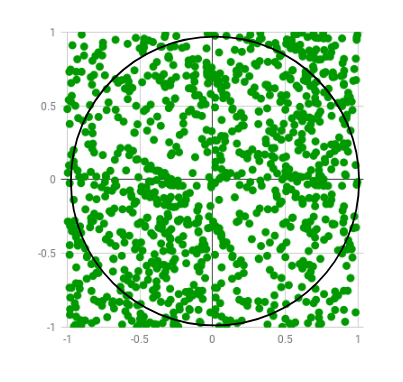 Random points are generated only few of which lie outside the imaginary circle
 -
Circuit Playground: Galaxy Explorer
Galaxy Explorer
Here's a project that combines ideas from my one-dimensional arcade game and orrery project. Think "1930's pulp science fiction" and you'll get the idea: The Circuit Playground lets you navigate a galaxy defined in a 100 element array with around 60 stars. You can stop at any one of the solar systems and observe an orrery-like display of the movement of the planets.
For me, the fun here is creating a UI with the CPX controls:
The program has three states:
travel - move through the galaxy
stop - choose a star displayed on the ten neopixels
explore - goes into orrery mode showing the planets in the chosen star-systemWhen in travel state, the A and B buttons increase the speed of the movement of the stars. A: clockwise, B: counter-clockwise. Multiple clicks increase the speed.
When in stop state, the A and B buttons move a blinking white pixel to select a star. A:move counter-clockwise, and B:clockwise. (yes, the opposite of travel mode).
Change state by pressing A+B - state cycles from travel to stop to explore and back to travel. In stop mode, you cannot move to explore unless the blinking pixel is on one of the stars.
At any point, shifting the switch to the left, turns off all the neopixels and switches the system to travel mode.
When the switch is shifted to the left, shaking the CPX will show all neopixels in green and generate a new galaxy.
Both versions, CircuitPython or Makecode work the same.
The generation of the galaxy creates two 100 element arrays. One defines the stars, and the other the "type" of solar system. When in explore mode, the defined colors and speed of the planets is set based on an algorithm.
Files
- explore.js - or makecode version: https://makecode.com/_Wt9P3udHMKjR
- explore.py - copy to code.py on a Circuit Playground with CircuitPython
 1940 "Planet" Pulp SF magazine cover
 -
Adventure Engine: Mapping a World in a NeoTrinkey
This project is my first draft of being able to squeeze an adventure world into the NeoTrinkey. Here's a link to the project repository. The code lets you build a map in a text file that defines a space to navigate. NOTE: the initial load of the repository had the wrong version of intput.py - the correct version is now in the repository.
Adventure-Engine
NeoTrinkey code for simple adventure gaming
- intput.py - pass a string "choices" to intpt(choices) and return one of the letters to calling routine. eg intpt("nsew") and you'll get back n,s,e,or w. This can be navigation.
- wise.py - choose a line from a text file. This file will be a linear list of an AxA array. Program will be used for description of current location
- advent.py - (code.py when running). Tracks user location in AxA array, calls wise.py to find and print location, then offers chance to move to N,S,E,W direction and retrieves choice from intpt(), calculates new location and prints it.
- prt.py - allows printing to REPL or via HID as typed output.
- ship.adv - sample map for a 3x3 ship
- magic.adv - sample map for a 5x5 magical realm. WRAP should be set to True, and radius to 5.
Code is a framework for having the NeoTrinkey navigate a space - dungeon, forest, spaceship.
Set map=[file name] of list of room descriptions
set radius=X where X is the size of the matrix. 3x3 or 5x5 for example
set px and py to starting room. eg. for a 3x3 map px=1 py=1 will set the start in the center of the map
set WRAP = True for the map being a torus, and False for the map having edges you can't go beyond.
sample map "ship.adv" defines a 3x3 map:communications bay|e cockpit|wse computer and navigation bay|w sleeping quarters|e wardroom galley|w storage|e engines|new power resources|wNote some lines end with a "|" plus directions that can be followed from the room. If the room ends with "|e" for example, you can only leave to the East. If the line ends with no |+direction(s) the default is you can leave NSEW. (for example, the wardroom in this case).
The map below shows the rooms for ship.adv, and the gaps in the walls show which directions you can go. Only the wardroom allows passage in all four directions, NSEW.
When running, you are given "Current location:" and then offered the directions you can go. Touching pad #1 toggles between choices, touching pad #2 chooses the current one.
For example:Current location: wardroom Next action? nsew? n! Current location: cockpit Next action? wse ? w! s! Current location: wardroom Next action? nsew? n! s! Current location: engines Next action? new ? n! e! Current location: power resources Next action? w ? w!
# Magic Adventure Map
Here's another map, that is defined in the repository file "magic.adv"

-
GFFA - Aurebesh!
I really enjoy coming up with new ways to combine my appreciation for Science Fiction linguistics with Adafruit products (especially the neotrinkey!) and CircuitPython. For this project I combined a classic tool "FIGlet" with the Aurebesh, the alphabet from the Galaxy Far, Far Away... (GFFA).
I started with FIGlet, the computer program that generates text banners, in a variety of typefaces, composed of letters made up of conglomerations of smaller ASCII characters. I modified an existing font file (standard.flf), replacing the letters a-z with my handmade versions of the letters seen above (note: anyone know of a good editor for FIGlet fonts? I'd love to improve the above).
That file was rather big for the neotrinkey - so I just extracted the Aurebesh and made it into an array for aure.py, a module to convert alphabetic English into Aurebesh. Then I made a program, aurebesh.py which could call aure.py's function doAure() for displaying different sayings or the alphabet, character by character - a useful training tool to become familiar with the alphabet. That's an important skill if you come across warnings like this:
All of this work went into a Github repository "Aurebesh" - from the Readme file:
-
Using a modified Figlet font ("standard.flf") I created aurebesh.flf, replacing a-z in the font with Aurebesh symbols.
-
I extracted the text for the a-z from Aurebesh.flf and made them into an array of texts for aure.py
-
aure.py has a function doAure(text,delay,REPL) - text = the text to display in Aurebesh, delay is how long between each letter, and REPL indicates if the output is to go to the REPL or, via HID, out as keyboard input.
-
aurebesh.py is a CircuitPython program that uses prt.py and ncount.py. Touching pad#1 will deliver one-by-one the alphabet, touching #2 will choose a random saying from sayings[] and print the English version, then the Aurebesh letters, one-by-one.
Notes:
Edit the variable REPL in aurebesh.py to True for text to show up in the REPL; make it False for text to be delivered as if typed. Edit the variable "sayings" to the list of sayings you want to display in Aurebesh.
Files (copy these all to your neotrinkey)
- ncount.py
- aure.py
- prt.py
- aurebesh.py -- copy this to "code.py"
If output is going out as if typed, the program will pause when started, blinking red till you touch one of the pads - this gives you a chance to move the cursor to the window you wish to receive the output.
Info:
Figlet: https://en.wikipedia.org/wiki/FIGlet Aurebesh: https://starwars.fandom.com/wiki/Aurebesh

-
-
Orrery: Put a solar system in your pocket!
For hundreds of years, the clockwork orrery has been a way to demonstrate the movement of planets around the sun - as Wikipedia describes them: "An orrery is a mechanical model of the Solar System that illustrates or predicts the relative positions and motions of the planets and moons, usually according to the heliocentric model. "
It occurred to me that, the circular display of ten neopixels on the Circuit Playground might be a way to make a different kind of orrery... so I did. My programs are in this repository and consist of three programs:
-
orrery.js - Javascript/Makecode version for the Circuit Playground (https://makecode.com/_EHeh61h4Dcvo for the Makecode IDE version)
-
orrery.py - Circuit Python version for the Circuit Playground (copy to code.py on the device)
-
neo-orrery.py - Circuit Python version for the NeoTrinkey - again, copy to code.py on the device (you didn't think I'd leave the NeoTrinkey out did you?)
I opted to just do Mercury, Venus, Earth and Mars - adding more planets was too cluttered, plus the relative speeds of the inner planets are easier to see.
All versions start by showing Mercury (pale white), Venus (yellow), Earth (green) and Mars (red) as neo pixels moving at their relative speeds around the sun - from Mercury the fastest to Mars the slowest.
Each can switch to a random setting, changing the color and speeds of the four planets.
Makecode version: "A" stops/starts motion, "B" sets up a random solar system, and "Shake" resets to defaults.
Circuit Python Playground version: "B" sets up a random solar system and "A" resets to defaults
Circuit Python NeoTrinkey version: Touch pad #2 to get a random solar system and pad #1 to reset to defaults
NOTE:
The mechanics of the simulation are simple. Each program has a loop that increments a counter for each "planet." There is a table of periods for each planet, an integer that is 100 times the length of the planet year, so, for example, Mercury's period is 22 and Earth's is 100. When a planet's counter reaches the value of its period, the counter is cleared and the planet's position is advanced one position.
 A small orrery showing Earth and the inner planets
 -
-
Do You Want to Make a Starship?
I'm not talking about an ill-named monster rocket booster, but honest-to-goodness STARSHIPS! As Wikipedia puts it:
A starship, starcraft, or interstellar spacecraft is a theoretical spacecraft designed for traveling between planetary systems.[1] The term is mostly found in science fiction.
https://en.wikipedia.org/wiki/Starship
I've certainly not got the resources to make such a vehicle... but what if you could build a really small spacecraft? Say, like this?
This was my inspiration to make a "Starship" on my NeoTrinkey - a simple spaceship program. My "ship on a chip" defines the decks of a ship and a set of potential destinations.
I've included it all in a github repo "Ship on a Chip"
- What IS a "starship?" :https://en.wikipedia.org/wiki/Starship
- Inspired by https://en.wikipedia.org/wiki/Breakthrough_Starshot, https://www.scientificamerican.com/article/inside-the-breakthrough-starshot-mission-to-alpha-centauri/
- trekdecks uses Enterprise deck as found at: https://memory-alpha.fandom.com/wiki/Constitution_class_decks
- Galaxy class decks: https://memory-alpha.fandom.com/wiki/Galaxy_class_decks
- Defiant class decks: https://memory-alpha.fandom.com/wiki/Defiant_class_decks
- Intrepid class decks: https://memory-alpha.fandom.com/wiki/Intrepid_class_decks
- trekdests Destinations used: https://exoplanets.nasa.gov/news/1378/top-10-star-trek-destinations-chosen-by-nasa-scientists/
- exodests from https://en.wikipedia.org/wiki/List_of_nearest_terrestrial_exoplanet_candidates
- sspythondecks created for a simple example
- Copy the files wise.py, prt.py and shipchip.py (as code.py) to neotrinkey.
- Copy a "dests" file (trekdests or exodests) to neotrinkey as "dests" (or create your own set of destinations)
- Copy a "decks" file (trekdecks or sspythondecks) to neotrinkey as "decks" (Or create your own list of decks and dests.)
Change REPL=True to REPL=False if you want output to be "typed" via HID interface.
Change showdecks = False to showdecks = True if you want the decks to be listed on start.
Touch pad #1 to go "up" a deck and pad #2 to go down - holding both jumps to a random deck.
Files:
-
shipchip.py - ship on a chip - copy to code.py
-
prt.py - copy to neotrinkey
-
wise.py - copy to neotrinkey
-
exodests - rename to dests for use
-
sspythondecks - rename to dests for use
-
trekdecks - rename to decks for use
-
trekdests - rename to dests for use
When run, you'll get a message "Welcome aboard" - and you begin on "deck 1" - usually the bridge. A random destination is chosen and after a random number of steps up and down in the turbolift you "arrive" and a new destination is chosen.
Looks like this:
Welcome aboard!Ship destination is: RemusYou are on deck: 1 BridgeYou are on deck: 2 Science labsYou are on deck: 15 Deuterium fuel storageYou are on deck: 14 Engineering support, water storageYou are on deck: 13 Observation deck, dorsal interconnectsYou are on deck: 14 Engineering support, water storageYou are on deck: 1 BridgeArrived at RemusShip new destination is: NbiruYou are on deck: 2 Science labsMake up your own ship with a list of decks in the "decks" file and destinations in the "dests" and you've got your own starship!
How's this for a starship? -
Make Code on the Go - Makecode.Adafruit, that is....
I am a big fan of "being able to code whenever/wherever I am." That's why I bought a wireless keyboard for my iPhone, when I realized I could edit CircuitPython programs using my phone. It's one of my favorite things about the Micro:Bit - the App lets you write and upload code from your phone.
But I didn't think I could do that with makecode.adafruit.com programs for the Circuit Playground. I was wrong, in fact it's pretty easy. I just needed a lightning-to-USB adapter so I could download the code!
First - load your code in your browser (like the picture above).
Next - click the download icon in the lower left.
Then, click the file link above, to "open in a new tab."

-
Project Nyota
Language tools for NeoTrinkey
Inspired by Star Trek's Nyota Uhura, these programs provide a way to use a NeoTrinkey to review alien (or foreign) language words or phrases. They are all contained in my github archive Project Nyota.
There are two programs, langtutor.py and langtest.py - copy the one you want to use to code.py. The helper files wise.py and prt.py are required.
The file "langs" is a list of the languages to review. Each line in "langs" should be the name of a file containing language information. In this archive the languages are: klingon, vulcan, mandoa, and Swahili (in honor of Uhura - "Nyota" means "star" in Swahili).
Language files should be in the form:
"Word-or-phrase", "target-language-translation"
"Word-or-phrase", "target-language-translation"
"Word-or-phrase", "target-language-translation"
....
When either program runs, you'll see:
number of languages: 4

klingon
vulcan
mandoa
swahili
Current lang: klingon
To toggle between languages, touch pad #1. When you reach the one you want to review (for the langtutor.py program) touch pad #2 and you'll see 5 random review pairs. For example from the Mando'a set:
You're right. : Gar serim.
twenty : ad'eta
seventy : tad'eta
eighty : shehn'eta
Good. : Jate.
With the langtest.py program, when you choose a language and touch pad#2, you'll get four tests where you're given a word or phrase, then a choice of two possible answers in the target language. Touch #1 or #2 to choose. A pixel will light green or red to indicate if you are right or wrong. (If wrong, the correct answer will be given). After four questions, you can touch #2 to get four more, or touch #1 to change languages.
For example:
Current lang: vulcan

advise
1:lahso
2:a'Tha

correct!

walk (action-word)
1:imroy
2:lahso

yes!

'logic', reality-truth, the way things are.
1:c'thia
2:lahso

wrong: c'thia

'immanence' direc experience of the creator
1:kah-hir
2:a'Tha

correct!

touch #2 for another quiz, or #1 to change language.
When running the programs, you can set the variable REPL to "True" or "False" to direct the output. If REPL=True, all output is sent to the REPL. If it is False, output is directed as if typed using the HID interface. There is a delay when that is the case, to give you time to switch to an open editor window to receive the output.
Note:
Copy all these files to the neotrinkey: langtutor.py, langtest.py, wise.py, prt.py, langs, klingon, vulcan, mandoa, swahili. Then copy langtutor.py or langtest.py to code.py to run.
Language sources:
- Swahili vocab from: https://www.fluentin3months.com/swahili-words/
- Mando'a vocab from https://mandoa.org/ Note: the Mando'a language from Star Wars was developed originally by the author Karen Traviss for the Mandalorian people
- Klingon vocab from: https://kli.org and https://hol.kag.org
- Vulcan vocab from: https://tinyurl.com/VulcanArchive - archive.org of Marketa Zvelbil's original Vulcan work (note: In case archive.org is not available, I've copied the Dictionary and Lexicon to vulcdict.txt and vulcanlex.txt)
- To create your own language, you can use a tool like this: https://rollforfantasy.com/tools/language-generator.php
Nyota Uhura -
Launching from DS9!!!
Anyone who has seen the miniature 3D printed Trek and Star Wars ships hanging over my workbench (thanks, Thingiverse!) won't be surprised how many of my projects take an SF bent. But I've also got a space station!
And that inspires this Circuit Playground Express project - launching probes into the Bajoran Worhmhole!
I've got a repository for the code at DS9-game:
There are three files, two CircuitPython, and one JavaScript (or you can follow the makecode.com link)
- ds9.js - Javascript/Makecode version of game (https://makecode.com/_KhmDoYXCpVdh)
- ds9.py - CircuitPython version (rename to code.py)
- bach.py - helper code for music and sounds for ds9.py
It is a pretty simple game using the Circuit Playground circle of neopixels.
The premise is the space station Deep Space Nine (a blue neopixel) is in motion near the Bajoran Wormhole (a neopixel of shifting color). As the station shifts back and forth, the wormhole remains the same distance (five neopixels away). The station is launching automated probes to the wormhole - A sends them counter-clockwise, B sends them in a clockwise direction. You have ten probes to launch - if they successfully enter the wormhole, there will be a rainbow of neopixels across all ten. When you have sent all ten, you'll see pixels representing how many you managed to send into the wormhole (0-10). For the Makecode version, shake the CPX to restart. For the CircuitPython version press A or B.
Both versions make a sound when launching the probe, and will play a scale or musical flourish when you succeed. To turn that off, slide the switch to the left. To the right turns the game sounds on.
I found the differences in coding Makecode and CircuitPython versions interesting. With Makecode I could have multiple "forever" loops handling different actions - toggling Booleans to activate/deactivate them. With CircuitPython I used a single game loop and controlled the movement of the probe with a Boolean and a counter (it can only go 4 steps). The same Boolean prevents the A/B buttons from launching more than one probe at a time.
Give it a try - see how many you can get to land in the wormhole!

-
Prime Time Python!
I think prime numbers are like life. They are very logical but you could never work out the rules, even if you spent all your time thinking about them - Mark Haddon, The Curious Incident of the Dog in the Night-Time
At some point, I realize I consider the Circuit Playground kind of a multi-tool - sensors, inputs, sound output, control of motors and more... actually, maybe more like Doctor Who's Sonic Screwdriver....
This week I worked to reconfigure my CPX to search for prime numbers because... why not? With my memory of the Sieve of Eratosthenes it took no time to find Python code to adapt for CircuitPython. In fact the code pretty much ran fine from the start.
First though, I made a version for Makecode - essentially using the Python code as a model. And then I made the CircuitPython version - actually two versions. More on that later. (And, yes, there is a NeoTrinkey version as well).
It is all in this repository : Eratosthenes
- ESieve.js - MakeCode/Javascript for finding all primes < 1000 https://makecode.com/_H5qFx46rYF1c for Makecode version
- ESieve.py - CircuitPython for finding all primes < 1000 - copy to code.py
- ESievePlus.py - CircuitPython for finding all primes < 8000 - copy to code.py
All three of the above will flash colored lights while searching for the prime numbers. When done, A will pick a random prime and display it, first in binary, then digit-by-digit in decimal version. Pressing B will step through all of the primes it found, displaying in binary. Touch A1 to display the last random prime it found in the random selection from pressing A.
The coding of binary values uses the ten neopixels - Green for 1's and Blue for 0's
NeoPixel: 0 1 2 3 4 5 6 7 8 9
Value: 1 2 4 8 16 32 64 128 256 512
The digit-by-digit display of a number lights up yellow pixels to show a value, with the rest of the pixels blue (so for 0 they all are blue).
- neosieve.py - neotrinkey version (copy to code.py)
- ncount.py - support file for neosieve.py
NeoTrinkey version. It finds all primes < 1000. First it flashes colored lights while searching, then, when done, touching pad #1 will display a random prime digit by digit with binary coding. Touching pad #2 will redisplay the last random prime found.
The "digits" displayed use the binary coding I had in the RRPN Calculator project:
All of the Circuit Python versions (neotrinkey or Circuit Playground), if connected to Mu or a similar IDE, will print information to the REPL.
Code based on https://www.geeksforgeeks.org/python-program-for-sieve-of-eratosthenes/ - MakeCode version written from scratch recreating the algorithm followed in that sample Python code.
Challenges
It seemed ... paltry to ONLY do the primes < 1000 but creating a Boolean array of more than 1000 ran into memory limitations. To fix that, in ESievePlus.py, instead of an array of Booleans, I created an array of 1000 8 bit numbers, initially set to 255 (11111111 in binary) and wrote functions to clear bits (indicating NOT prime) and another to test whether individual bits were 1 (prime) or 0 (not prime).
This introduced another problem - numbers greater than 1023 need more than 10 bits to display - so I modified the showbin() routine to shift all the pixels when displaying the higher bits.
Note: Since it takes a while to display hundreds of prime numbers when you push the B button (over a thousand for the ESievePlus.py version!) - the A button is an easy way to sample the primes that were found.
 NeoTrinkey Binary Values
 -
NeoTrinkey RRPN Calculator (The extra "R" is for "Ridiculous")
It is NOT true that I lay awake at night thinking of odd things to do with the NeoTrinkey*....
That said, here's a project I've been thinking about for a while - making an RPN calculator (well more of an adding machine) with the NeoTrinkey.
The project code is here and consists of two CircuitPython modules, babbage.py (renamed to code.py when in use) and a helper module, ncount.py.
One of the great features of the NeoTrinkey is the four neopixels - they provide a very flexible output display. Considering the range of colors you could present with the neopixels, you could easily represent any number from 0 to 999 (assuming ten colors). For this project, we're sticking to binary and using the ncount.py function binnum(color, number) - it will display the values from 0-15, using the neopixels:
Given a number, binnum(color,num) will display the binary value from 0-15 (for zero all pixels are set to faint white; otherwise the pixels are set to color for the value of num.).
So... how to use this for a calculator?
I defined an array to be a stack, then set four states for the calculator: wait, enter, add, subtract, and pop.
To toggle between states, one touches the#1 pad. When you do you'll see the current state appear (and clear) with the color "gold.":

-
Is that a good idea? Building a one-dimensional Starfighter game....
Last January I spied an Arstechnica article, "1D Pac-Man is the best game I’ve played in 2024 (so far)", and it got me thinking. I've done more than a few little arcade games with my Pybadge - but I wondered if I could do something on the CircuitPlayground.... Hmmmm.....
So I came up with StarFighter Patrol. Basic premise: Hyperspace lanes are plagued by navigational hazards - asteroids - that you need to blast to clear for safe passage. A "lane" is a 100 element array in the program - on the CPX you see ten elements - your ship at pixel 4 or 5 (depending on which direction you are heading). The stars and asteroids move clockwise initially - the lane is a circle, if you wait long enough the same elements will come toward you.
Pressing B reverses direction, A fires your lasers. You need to clear the purple asteroids that are a hazard to hyperspace navigation. You can move to a new region by hitting A4. Or if you choose restart the game with A3. When you've been hit 5 times your score (number of asteroids cleared) will show before the game restarts. (the score is digit-by-digit, so 13 would show one pixel, then three pixels. Zero is all green pixels). In the CircuitPython version you restart when you hit A or B. The Makecode/Javascript version will restart after a pause.
The Circuit Playground display shows your spaceship as a green dot, and the stars and asteroids heading toward you in a 10 pixel-wide display - this is a portion of the 100 pixel wide hyperspace lane you patrol (think of the "lane" as a circle - you move left or right in in and will wrap all the way around if you play long enough). Your ship fires toward oncoming objects - so when you reverse course the laser blasts (yellow dots) move towards the oncoming objects.
Bonus: You can see MORE pixels if you attach https://www.adafruit.com/product/3811 - the 30 pixel Adafruit neopixel strip using A1 as the control - then you'll get a 30 pixel wide one-dimensional display!
I'm happier with the way the CircuitPython version turned out - but both versions (Makecode/Javascript or CircuitPython) pretty much work the same.
Switch to the right to turn off sound.Files in the github archive:
- bach.py - provides musical tones - copy to Circuit Playground for starfighter.py
- starfighter.py - 1D starfighter patrol game. Destroy asteroid threats. copy to code.py on your Circuit Playground
- starfighter.js - Javascript version Makecode link: https://makecode.com/_RocF4AHbY19R
Game controls:

  A - fire laser
  B - reverse direction
  A4 - hyperspace
  A3 - restart game
  A7 - show last score